Callie scheduling assistant overview
Beta
Callie™ is currently in private beta for select users. Sign up for early access.
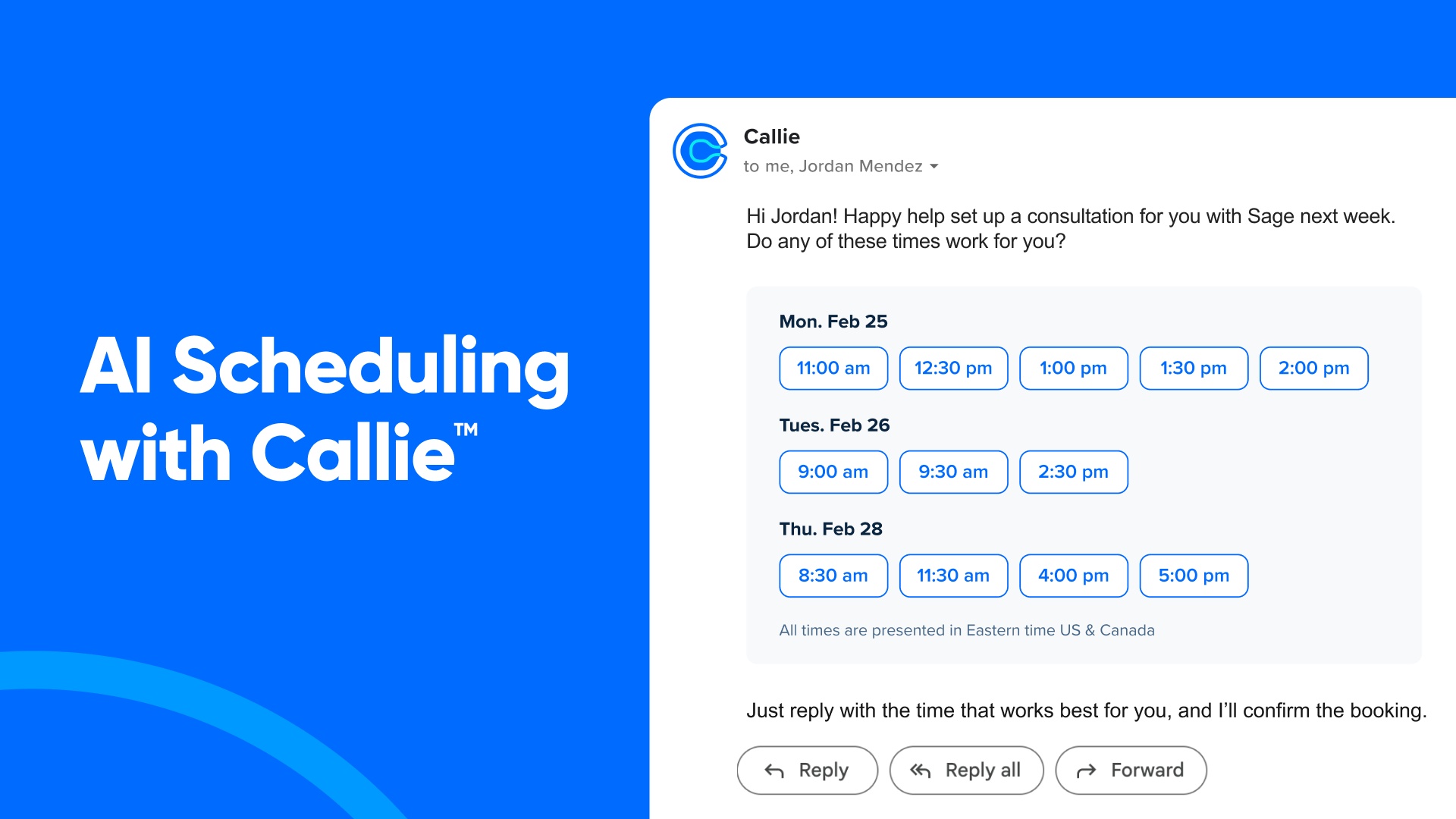

What is Callie?
Callie™ is Calendly's AI scheduling assistant. Add Callie to an email conversation, the way you would a human assistant, and simply describe what you need — for example, "Callie, help us find time next week." Callie suggests times based on your availability and preferences, coordinates with your invitee, and helps schedule the meeting for you.
For example, you can:
- Schedule meetings with a customer, prospect, or client directly from an email thread
- Set up follow-up meetings without searching for a scheduling link
- Share availability by adding Callie to the conversation and describing what works for you
- Offer a one-time exception, like a 50-minute meeting, Saturday morning availability, or a different meeting location
Why use Callie for scheduling?
Just one email to remember: Instead of choosing between different scheduling links, you only need to remember one email address: add callie@calendly.com and say what you need.
Flexible enough for real life: Callie adapts when the meeting doesn’t follow the usual rules, like a different time, duration, location, or availability window — without you having to change your setup.
Works in the flow of the conversation: Because Callie understands context and works right in the email thread, meetings get scheduled without switching tools, finding links, or changing settings.
Callie vs. a scheduling link
Both Callie and scheduling links save you time. Choose based on your situation.
Callie works best for one-on-one meetings when you’re emailing your invitee, and scheduling links work best for meetings with multiple hosts, group scheduling, or team coordination.
Callie | Scheduling link | |
Use when | You're already emailing with one person about meeting | You have multiple hosts, need group scheduling, use a shared mailbox, or are coordinating with a team |
How it works | Add callie@calendly.com to your email thread (in the address bar) | Share a booking link with the invitee(s) |
What the invitee sees | Available times directly in the email thread | Your booking page with your availability and meeting details |
Best for | Seamless scheduling within ongoing conversations | Self-service booking and complex scheduling scenarios |
Before you begin
Callie works with the email account that you use to login to Calendly. Send from that email so Callie recognizes and responds to you. This means:
- Shared mailboxes won't work with Callie
- You'll need to send from the same email each time
Getting started with Callie
Ready to start using Callie for scheduling? Take a look at these articles to help you get started:
Best practices
- Write naturally. Callie understands everyday language.
- Include dates and times when you have a preference.
- Keep scheduling in one email thread.
- Keep your availability up to date in Calendly and your connected calendar(s).
Where can I share feedback?
Click "Report an Issue" or "Give Feedback" at the bottom of any email generated by Callie.